How to Update Your Payment Method in Your DNT Network Learning Account
Need to update or add a payment method in your DNT Network learning account? You can do this directly from your learner dashboard in just a few steps.
Please follow the instructions below. The screenshots are included as a visual reference and should be inserted in the same order.
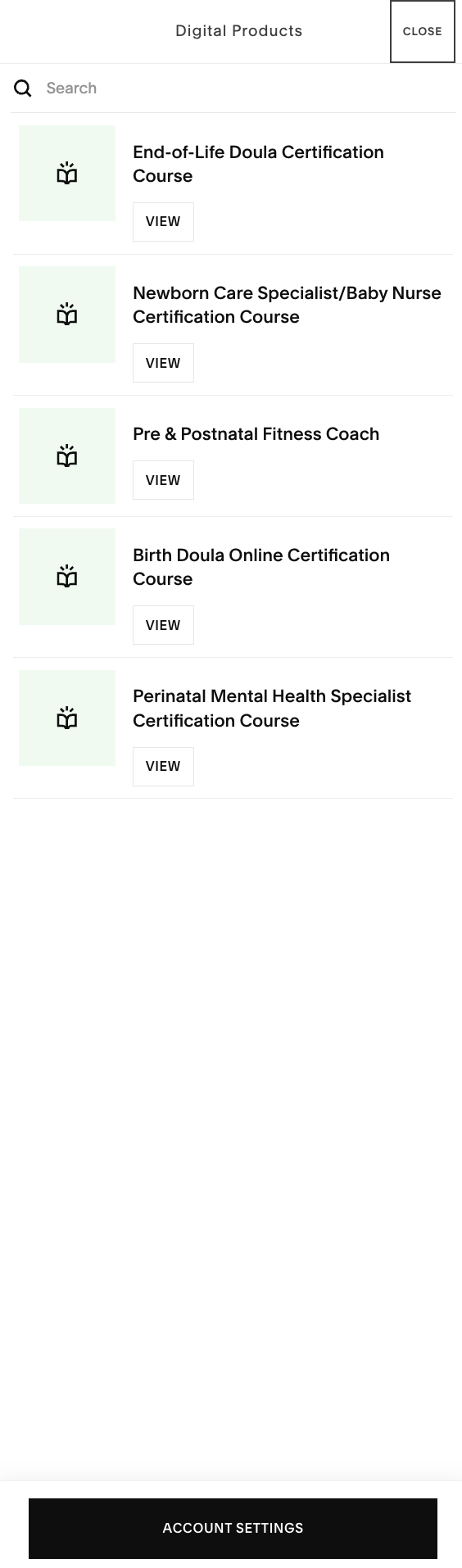
Step 1: Go to Your Account Settings
After logging into your DNT Network learning account, open your learner dashboard. Scroll down to the bottom of the page and click Account Settings.
This will take you to the section where you can manage your profile, digital products, orders, addresses, and payment methods.
Step 2: Select “Payment Methods”
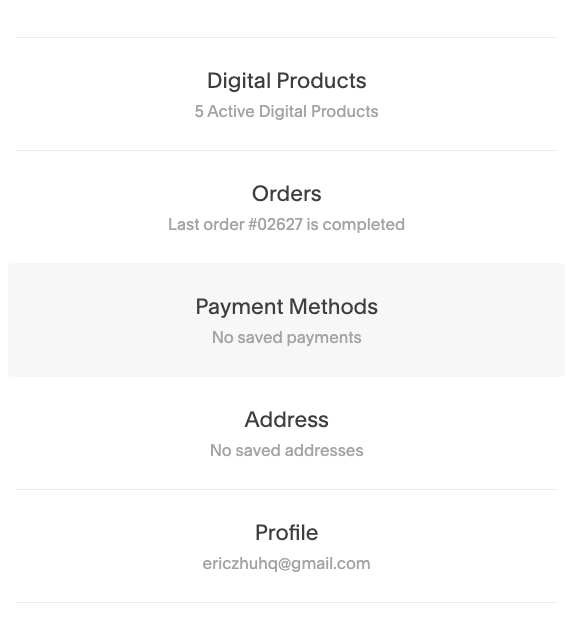
Inside your account settings, you will see several sections, including:
Digital Products
Orders
Payment Methods
Address
Profile
Click on Payment Methods.
If you do not currently have a saved card, this section may say No saved payments. That is completely normal.
Step 3: Click “Add New Payment Method”
Once you are in the Payment Methods section, click Add New Payment Method.
This will open a secure payment form where you can enter your new card information and billing address.
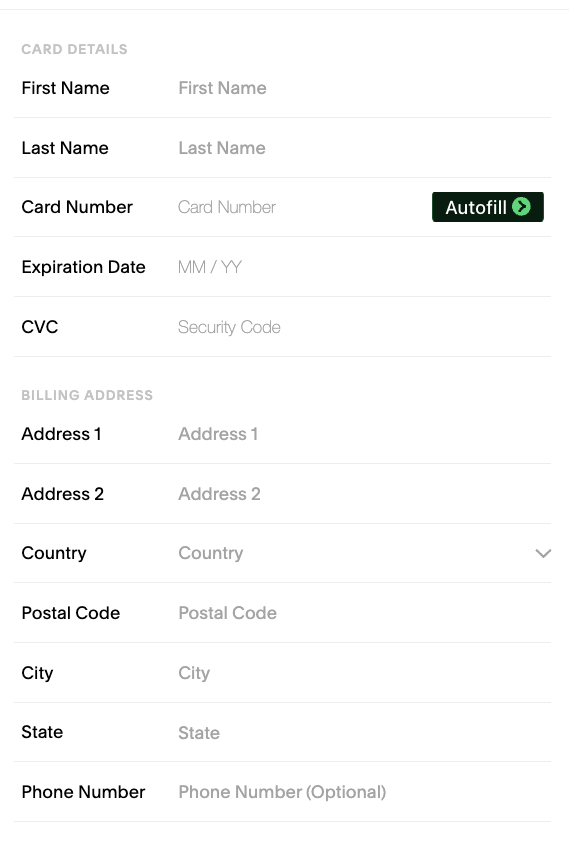
Step 4: Enter Your Card and Billing Information
On the payment form, enter the required card details, including:
First Name
Last Name
Card Number
Expiration Date
CVC
Then complete the billing address section. After entering all required information, save or submit the payment method.
Important Notes
Please make sure your billing address matches the address connected to your card. This helps prevent payment errors or declined transactions.
If you are updating your payment method because a previous payment did not go through, please add the new card first, then contact our support team so we can help confirm the update.
If you experience any issues, please reach out to us at support@dntnetwork.comor send a message through our support line. We are happy to help.
